Quick support
For helping someone who will never open a terminal: they double-click one file, read you an ID and a password, and press Allow when you connect.
| Ready | Someone asks to connect |
|---|---|
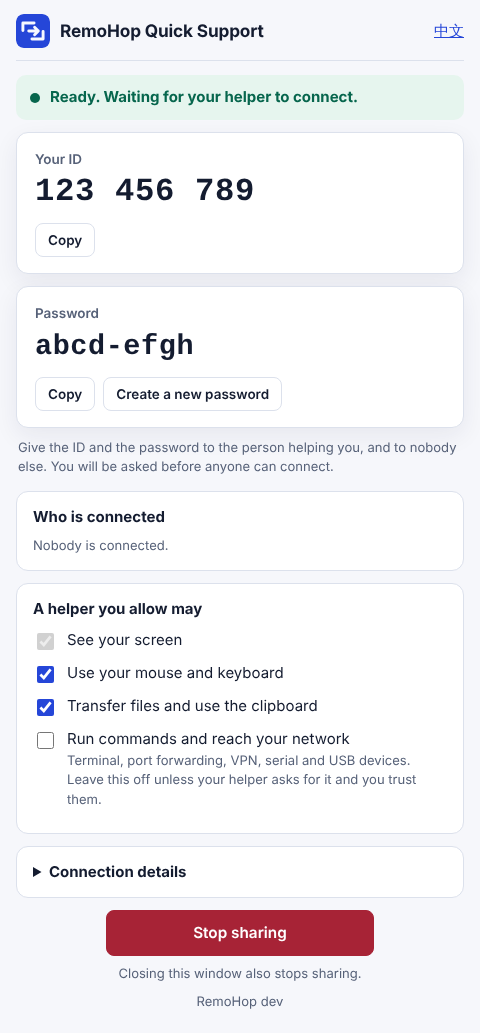 | 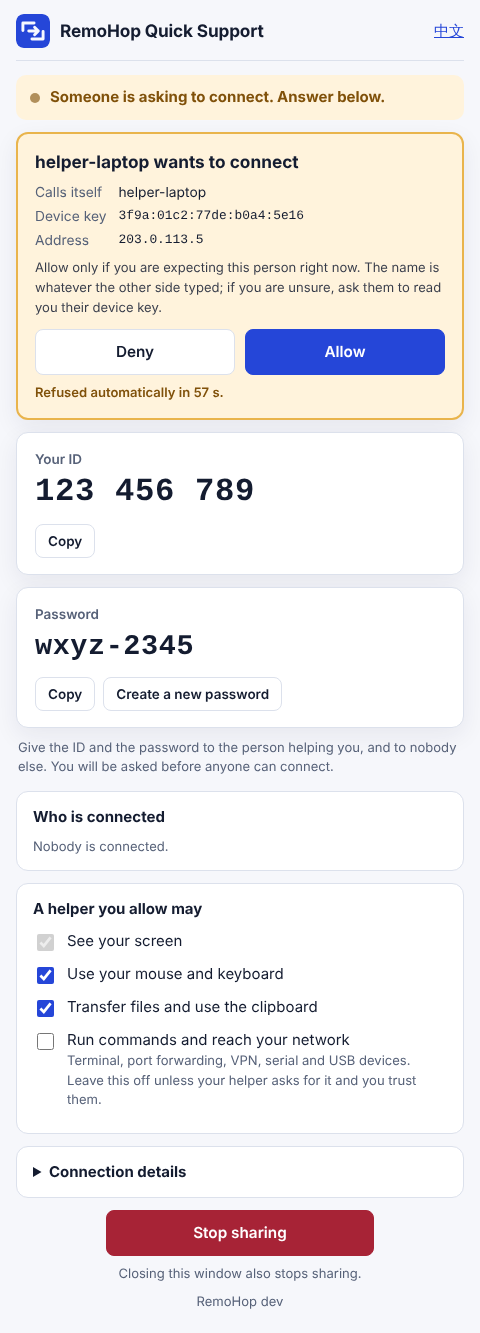 |
| System | What they open | Built by make quick as |
|---|---|---|
| Windows 10/11 | RemoHop.exe | dist/quick/windows-amd64/RemoHop.exe (and windows-arm64) |
| macOS 12+ | RemoHop.app | dist/quick/macos/RemoHop.app (universal) |
| Linux, or any terminal | remohop quick | dist/quick/linux-*/remohop-quick |
RemoHop.exe and RemoHop.app are the same program as remohop; started without arguments they run remohop quick.
What the person at the computer gets:
- The ID and a temporary password, large, with Copy buttons and "Create a new password". The password is new on every start; the ID stays the same for the computer.
- A question for every connection. The right password is not enough: each login waits until they press Allow, and is refused after 60 seconds without an answer. The request shows the name the other side gave itself, its device key (the fingerprint of its identity key) and its address. On Windows and macOS the same question also appears as a system dialog on top of everything else, so it is not missed when the window is buried; either place answers.
- Who is connected, each with a Disconnect button, and Stop sharing, which ends every session and quits. Closing the window stops sharing too.
- Three switches for what an allowed helper may do besides seeing the screen: use the mouse and keyboard (on), transfer files and use the clipboard (on), run commands and reach the network: terminal, port forwarding, VPN, serial, USB (off). They apply at once, also to a helper who is already connected.
- The state of the connection in plain words: registered with the server or not, still trying, and whether helpers come directly or through the relay.
The window follows the system language (Chinese or English) and can be switched in its corner; the choice is remembered for the next start and also applies to the system's connection dialogs. --lang zh|en overrides both.
You, the helper, connect as usual: remohop <ID> desktop, the browser client (remohop web) or the mobile app, with the password they read to you.
The rendezvous server. A build with a built-in server (-X .../internal/dial.DefaultSignal=HOST:PORT, see Self-hosting the rendezvous server) needs no setup. Without one, the window asks for the server address on first start and stores it (the same setting as remohop config set signal). To pass the build setting to make quick: EXTRA_LDFLAGS="-X github.com/readori/RemoHop/internal/dial.DefaultSignal=HOST:21116" make quick.
What a quick-support host allows, whatever remohop config says: approval for every login, pairings and authorised keys included; only the temporary password of this run (a fixed host-password is ignored); no new pairings; and only the features ticked in the window. Features switched off with remohop config feature stay off. It uses the same identity as remohop host, so the computer has one ID; if a host is already running there (a service, or remohop host in a terminal), the window says so instead of starting a second one. Starting RemoHop again while quick support runs brings its window back.
How the window works, and what protects it. There is no native toolkit in RemoHop (it stays pure Go, without cgo), so the window is a page served by the process itself on 127.0.0.1, opened in an app window of Microsoft Edge on Windows and in the default browser elsewhere (--browser forces the default browser, --no-open only prints the address). It cannot be reached from another machine, its address contains a 128-bit random token, requests with a foreign Host or Origin are refused (DNS rebinding, cross-site requests), and every action is a JSON request carrying a second secret. A client waiting for approval has no session and therefore no way to move the mouse on that computer: nobody can approve themselves. A helper who has been allowed and can use the mouse can click anything on that screen, this window included; that is what allowing remote control means, and why the mouse-and-keyboard switch exists.
Limits to know about:
- Windows:
RemoHop.exeis not code-signed yet, so SmartScreen warns on first start ("More info", then "Run anyway"). It runs without administrator rights, so the helper cannot operate UAC prompts or windows of programs running as administrator. Windows Firewall may ask about network access on first start; connections work with either answer on most networks, because the host connects outwards. - macOS: the first connection needs the Screen Recording permission, and mouse and keyboard need Accessibility (System Settings > Privacy & Security; both are listed as "RemoHop", and Screen Recording takes effect after RemoHop is started again).
RemoHop.appbuilt here is unsigned; see packaging/quick/README.md for signing and notarization. - The page and its server are tested in a real browser on Linux. The Windows and macOS pieces around them (the Edge app window, the system dialogs, the
.appbundle) compile and are checked structurally but have not been run on those systems yet.